Microduck Simulator - Playful Robot Physics Demo
Microduck Simulator is a browser-based robotics demo where a tiny biped walks, sits, recovers, grabs with its beak, and switches between feet and rollers.
Related Games








About This Sim-to-Real Robotics Demo
- Category
- Simulator Games
- Platform
- Web browser / Hugging Face
- Mode
- Interactive physics sandbox
- Developer
- Pollen Robotics
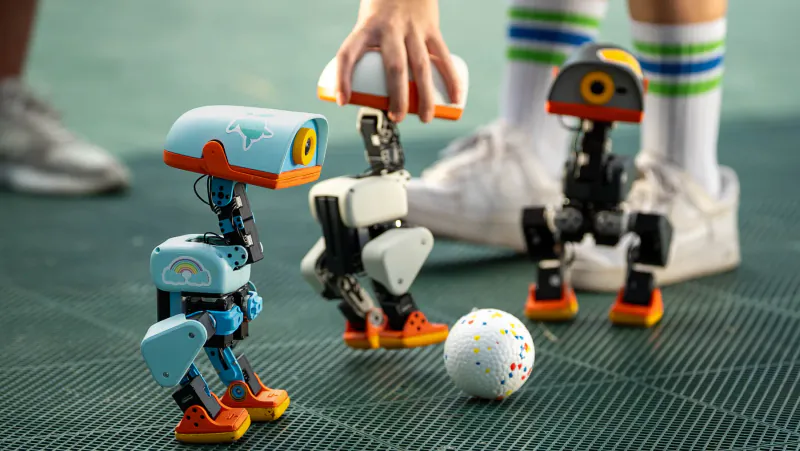
Pollen Robotics built Microduck as a small open-source biped whose behaviors are learned with reinforcement learning. Its product workflow moves from training in simulation to deploying, refining, and publishing a policy. The browser experience makes that idea tangible through a playful twin: walk, kick, sit, recover, pick up with the articulated beak, or switch to rollers while the live display tracks speed, distance, frame rate, and control timing.
Microduck Simulator: See a Tiny Robot Learn to Move
Controls
Begin by picking a shell color and trying Feet mode; Rollers makes a useful second experiment. Press Waddle in to enter the scene. Walk a short arc, use G beside a ground-level object to test the beak pickup, then try A or E to send a kick. Press R to watch a sit-to-stand recovery, and use C or a drag to follow the movement from a different angle. When the experiment gets messy, press Space to reset and compare another locomotion choice.
Game Features
- Explore a live browser twin of a small learning robot
- Watch the duck walk, sit, stand up, kick, and pick up objects
- Compare Feet and Rollers locomotion
- Try four shell colors: Cream, Graphite, Lavender, and Sky
- Use chase view, orbit controls, and zoom to follow the action
- Reset the scene and experiment with another behavior
Microduck Robotics Videos & Learning Guides
These clips cover reinforcement learning, simulated behavior, and the physical robot behind the interactive demo.
Microduck Simulator FAQ
How do you start Microduck Simulator?
Choose a color and a locomotion mode, press Waddle in, and enter the browser scene. Feet is a clear first test before you compare the roller setup.
How do sitting and resetting work?
Press R to sit and tap the control again to stand. If you want to compare the behavior from the beginning, press Space to return the simulation to a fresh start.
How do you change the camera view?
Press C to toggle the chase camera. You can also drag to orbit around the duck and scroll to zoom in or out while watching a movement test.
What is the simulator designed to demonstrate?
It demonstrates the sim-to-real idea behind a 25 cm open-source biped: behaviors are trained in simulation, then refined toward the physical robot and shared as policies.